


To publish an article, you first need to [contact us->mailto:info@bilaterals.org] to create an account. If you have already registered, you can skip this step.
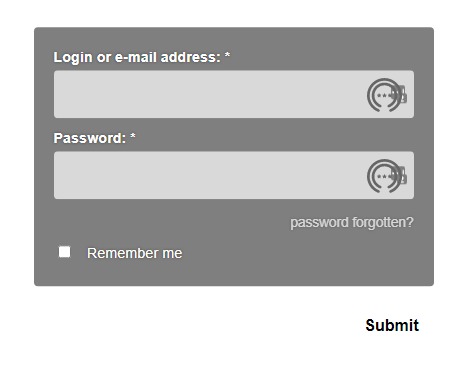
Click on [publish] on the top bar of the site. You will be prompted to enter the username and password that you were given.
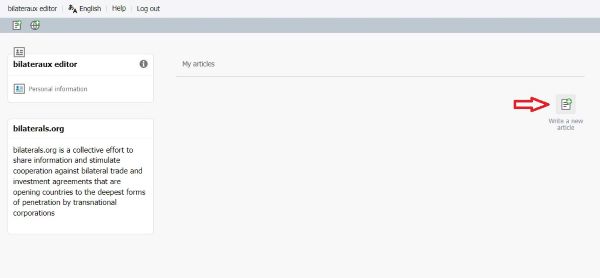
The screen will now take you inside the publishing area of bilaterals.org. Click on the [write a new article] icon as shown below.
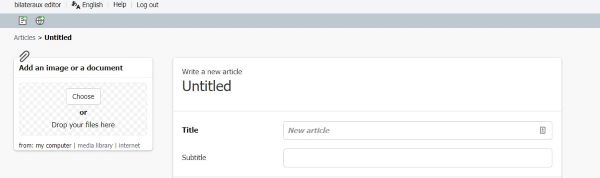
1. The Title is the main link to your article and will appear on the homepage. Please keep it informative and short. The Subtitle is optional.
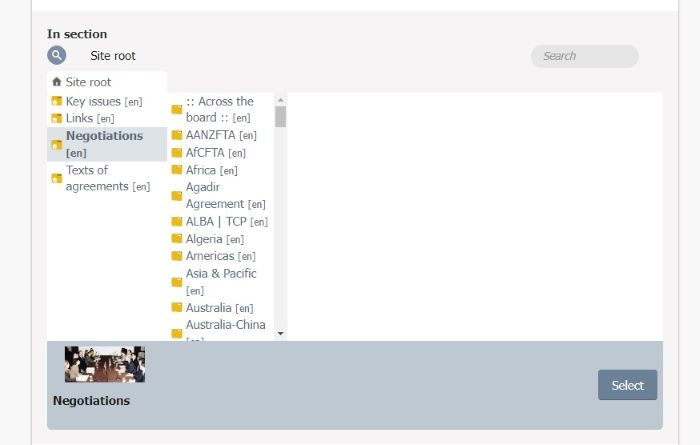
2. Carefully choose the Section of the website where your article should be placed by clicking on the magnifying glass icon. You cannot have an empty section when publishing an article. If you are unsure about what section your article belongs in, you can read about the section’s description on the home page under each section or just ask us at bilaterals.org@gmail.com or @bilaterals_org
3. The Brief description is a short summary of the article that appears under the title on the homepage. Please keep it short (1 sentence).
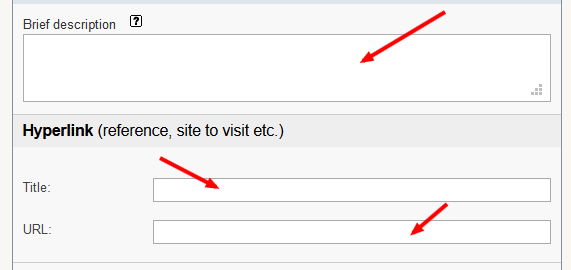
4. Hyperlink is to indicate the original source of the article, if you are reposting from somewhere else. Please enter the name of the source (e.g. "Reuters" or "Prensa Latina") and the URL of the page where you got the article.
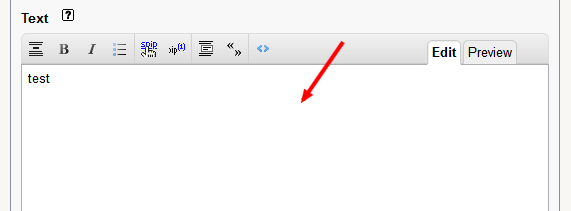
5. Now paste or enter the full text of the article in the Text box.
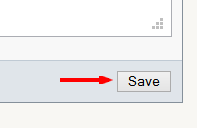
6. If everything is ok, click on the Save button (bottom right of screen). You are now ready to finalize your posting.
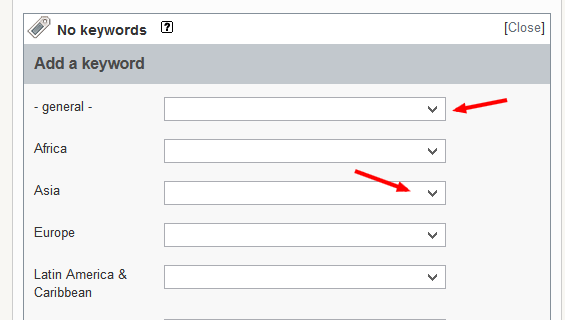
7. You should select one or more keywords to associate with your article. Keywords will help people find your article when navigating the site. First, click on the triangle icon on the left of the word "keywords". Next, select an appropriate keyword on the drop-down menu and then click on the select button. Repeat the process to add more keywords. If your article is intended for the ISDS platform, please select the keyword "investor-state dispute | ISDS".
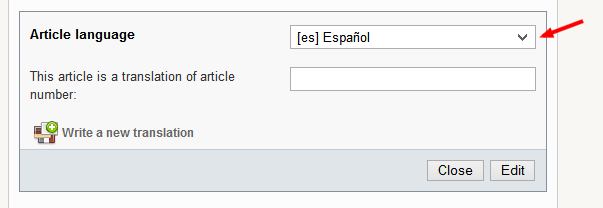
8. Select the article’s Language (default is English).
9. If you have an attachment or an image you want inserted inside your article, follow these extra steps:
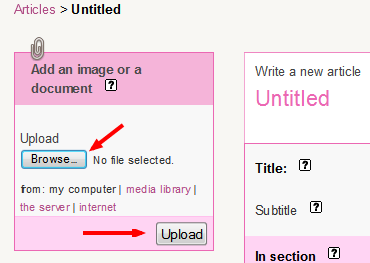
- click edit this article in the upper right hand corner of the article box
- click on the choose file button on the attachment box to the left to find the file on your computer.
- click on the upload button and you will see your attachment appear below the box.
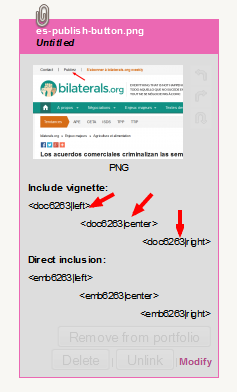
- d. below the thumbnail, you will see some text in the format
10. When you’re ready to publish, look for the “article status” button in the upper left hand area and choose:
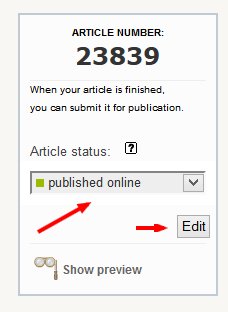
- "published online" to post it online
- "editing in progress" if you want to leave it for later
Now click the [edit] button to publish your piece!
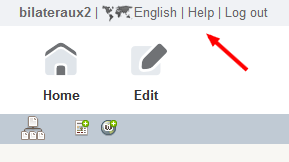
That’s it. You have successfully published your article. Of course, as you become more familiar with the publishing area, you might wish to use its more advanced features. You can learn more about this in detail by clicking on the help icon at the top bar of the screen.
----
Some tips:
- Please do try to fill in all the fields of your document, if possible. This will greatly help in your article being properly displayed and categorised.
- You don’t have to get it perfect. Someone will be monitoring what gets put online and tidying up.
Any questions, just [contact us->mailto:info@bilaterals.org] for assistance.